 MetaMask
Maven_Part_2
- sivaprasad.spch@gmail.com
- January 5, 2026
- No Comments
1. What is pom.xml and Why Is It Important?
• POM stands for Project Object Model.
• It is the foundation of any Maven project and is defined in a file named pom.xml.
• The pom.xml file serves as the core configuration for the project and tells Maven:
• What the project is (name, version, type)
• What to build and how to build it
• What dependencies (external libraries) the project needs
• How different build phases should run
• Where to deploy the final artifact (e.g., .jar, .war)
• Every Maven project must include a pom.xml file in its root directory.
Why is pom.xml Important?
• The pom.xml file centralizes and automates many aspects of a project’s lifecycle:
• It contains project metadata like groupId, artifactId, version, and packaging type (jar, war, etc.).
• It declares dependencies (external libraries or frameworks) your project needs (like JUnit, Spring, etc.).
• It defines plugins used to perform tasks like compiling code, running tests, or packaging.
• It configures repositories where Maven should download dependencies from or upload builds to.
• It manages goals and lifecycles, helping automate the full build and deployment process.
2. What Are Dependencies in Maven?
Dependencies are external JAR files or libraries that your project needs to compile, run, or test — for example, frameworks like Spring, libraries like Gson, or test tools like JUnit.
Instead of manually downloading and linking them, Maven automates the entire process.
How to Declare a Dependency
You add dependencies inside the section in your pom.xml file. Here’s an example for
JUnit:
<dependencies>
<dependency>
<groupId>junit</groupId>
<artifactId>junit</artifactId>
<version>4.12</version>
<scope>test</scope>
</dependency>
</dependencies>
• groupId: The organization or group that provides the dependency
• artifactId: The name of the library
• version: The specific version to use
• scope: When to use it (e.g., compile, test, provided, etc.)
Where are maven dependencies are stored:
📦 Maven Dependency Storage Explained:
When you declare dependencies in your file, Maven follows this process:
1. Checks the Local Repository First
• Located at:
(on Unix-based systems)
(on Windows)
• If the dependency is already present, Maven uses it directly.
2. Downloads from Remote Repositories if Missing
• If not found locally, Maven fetches it from:
• Central Repository: Maven’s default online source.
• Remote Repositories: Custom or organization-specific repositories you configure.
3. Stores the Downloaded Dependency Locally
• Once downloaded, the dependency is saved in for future builds.
🧠 Why This Matters
• Speeds up builds: No need to re-download the same libraries.
• Offline builds: Projects can compile even without internet, if dependencies are cached.
• Easy troubleshooting: You can inspect or delete problematic JARs manually from .
🔧 Customizing the Repository Location
cd /conf/settings.xml –>
You can change the default location by editing the file (usually found in ): <localRepository>/path/to/custom/repo</localRepository>
You should change maven defult repository loaction for best practice. because You may want to change the Maven local repository location for reasons primarily related to managing disk space, sharing artifacts among users or projects, and adhering to specific corporate or system configurations
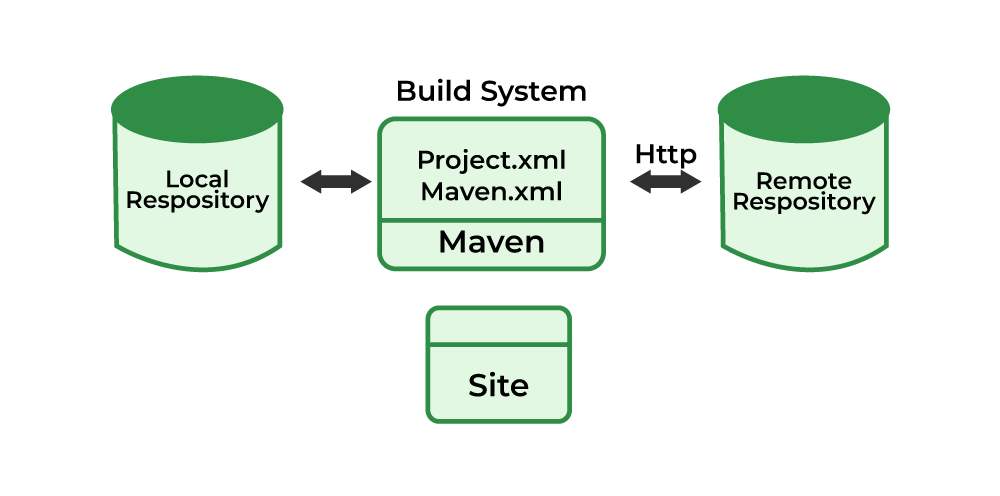
Types Of Maven Repo’s :
1. Local Repository
• This is on your own computer, usually inside the folder.
• Whenever you build a Maven project, Maven first checks here to see if the required dependency is already downloaded.
• If it’s present, Maven uses it directly. If not, it looks elsewhere.
2. Central Repository
• This is the default online repository maintained by the Apache Maven community.
• It contains thousands of popular open-source libraries (like Spring, JUnit, Gson, etc.).
• If Maven doesn’t find a dependency in your local repository, it automatically fetches it from the Central Repository.
3. Remote Repository
• These are additional repositories you or your organization configure.
• They can host proprietary or third-party libraries that aren’t available in the Central Repository.
• For example, a company might maintain its own internal Maven repository for private artifacts, or you might add a remote repository for frameworks like JBoss or Spring.
How Maven Resolves Dependencies
• Step 1: Check the Local Repository.
• Step 2: If not found, check the Remote Repositories (including Central).
• Step 3: Download the dependency and store it locally for future use.
Maven Build Life Cycle:
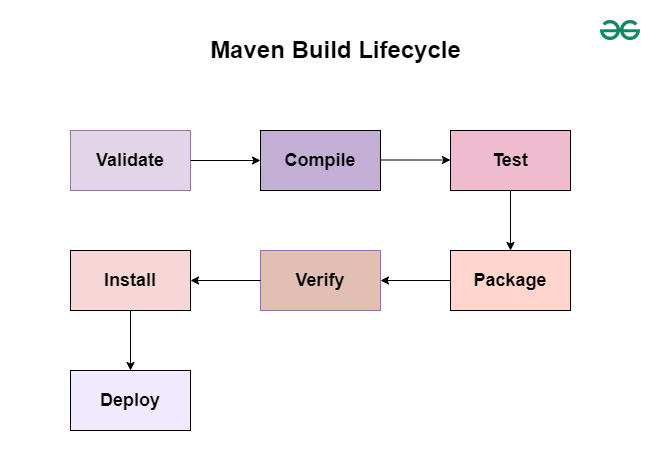
Maven defines a standard sequence of phases that automate the build process. The three built-in lifecycles are:
1. Default Lifecycle (Main Build)
Handles project build and deployment. Key phases include:
• validate → Check project structure and dependencies
Command: mvn validate
• compile → Compile source code into bytecode
Command: mvn compile
• test → Run unit tests using frameworks like JUnit
Command: mvn test
• package → Package compiled code into JAR/WAR
Command: mvn package
• install → Install package into local repository ()
Command: mvn install
• deploy → Copy package to remote repository for sharing
Command: mvn deploy
2. Clean Lifecycle
Focuses on cleaning up artifacts from previous builds.
• pre-clean → Do tasks before cleaning
• clean → Remove directory and build outputs
Command:
• post-clean → Do tasks after cleaning
3. Site Lifecycle
Generates project documentation and reports.
• pre-site → Prepare site generation
• site → Generate documentation (HTML reports, etc.)
Command:
• post-site → Finalize site generation
• site-deploy → Deploy site to a server
Command:
🧠 How Commands Work
• Running a phase executes that phase and all previous ones in the lifecycle.
Example: will run .
• You don’t need to run each phase individually unless you want to stop at a specific stage.
⚠️ Key Tips
• is one of the most common commands: it cleans old builds, compiles, tests, packages, and installs the artifact locally.
• is used in CI/CD pipelines to push artifacts to shared repositories.
• is often used for generating reports and documentation.
🔄 Maven Default Lifecycle Stages
The default lifecycle is the main one used for building and deploying a project. It consists of several phases:
1. validate
• Command: mvn validate
• Use case: Ensures the project structure and configuration are correct(e.g., checks pom.xml).
Changes: No files are created yet; Maven just validates metadata and dependencies.
2. compile
• Command: mvn compile
• Use case: Compiles source code (src/main/java) into bytecode.
• Changes: Creates .class files inside the target/clasess directory.
3. test
• Command: mvn test
• Use case: Runs unit tests using frameworks like JUnit/TestNG.
• Changes: Executes tests src/test/java in ; generates test reports in target/surefire-reports .
4. package
• Command: mvn package
• Use case: Packages compiled code into distributable format (JAR/WAR).
• Changes: Creates an artifact (e.g.,target/myapp-1.0.jar ).
5. verify
• Command: mvn verify
• Use case: Runs integration tests or checks to ensure the package is valid.
• Changes: May generate additional reports or validation outputs.
6. install
• Command:
• Use case: Installs the package into your local repository (~/.m2/repository).
• Changes: Makes the artifact available for other local projects to use as a dependency.
7. deploy
• Command:
• Use case: Uploads the artifact to a remote repository (e.g., Nexus, Artifactory).
• Changes: Shares the build with your team or organization for wider use.
🧠 Key Notes on Lifecycle Behavior
• Running a phase executes that phase and all previous ones.
Example: will run mvn package –> Validate –> compile –> Test –> Package
• The target folder is where most changes happen: compiled classes, packaged JAR/WAR, reports, etc.
• The local repository (.m2) is updated only when you run mvn install.
• The remote repository is updated only when you run mvn deploy.
8. Clean
The command is part of Maven’s Clean Lifecycle. Its job is simple but very important: it removes all files generated by the previous build so you can start fresh.
🧹 What Does
• Deletes the directory in your project.
• Removes compiled files, packaged JAR/WAR files, and any reports or temporary files created during the last build.
• Ensures that the next build is not affected by leftover artifacts.
⚡ Why Use It
• Avoid conflicts: Old compiled classes or resources might interfere with new builds.
• Ensure consistency: Especially useful before running or to guarantee a clean artifact.
• Best practice in CI/CD: Pipelines often start with to ensure reproducible builds.
🔑 Example
mvn clean –> Runs the clean phase → deletes (/target) folder.
mvn clean install –> Cleans old files, then compiles, tests, packages, and installs the artifact into your local .m2/repository.
⚡ Common Ways to Skip Maven Goals
In Maven, a goal is a specific task bound to a phase (like compiling, testing, packaging). Sometimes you don’t want certain tasks to run — for example, skipping tests to save time in a quick build.
🟢 Validate Stage
• Command: mvn validate –> No common skip flag (usually just checks project structure).
🟡 Compile Stage
• Command: mvn compile –> To skip compiling tests: mvn compile -Dmaven.test.skip=true
🔵 Test Stage
• Command: mvn test –> Skip running tests but still compile them: mvn test -DskipTests.
🟣 Package Stag:
Command: mvn package –> mvn package
Skip tests during packaging: mvn package -DskipTests
Skip compiling/running tests entirely: mvn package -Dmaven.test.skip=true
🟤 Install Stage:
Command: mvn install
Skip tests during install: mvn install -DskipTests
Skip compiling/running tests: mvn install -Dmaven.test.skip=true
⚫ Deploy Stage
Command: mvn deploy
Skip tests during deploy: mvn deploy -DskipTests
Skip compiling/running tests: mvn deploy -Dmaven.test.skip=true
✅ Summary in one line:
• Use -DskipTests → skips running tests.
• Use -Dmaven.test.skip=true → skips compiling and running tests.
• Use plugin flags (like -Dsurefire.skip=true) → skip specific plugin goals.